


How to Set Up a Christian Blog Using Hostinger (Step-by-Step Guide for Beginners)

Introduction: You Can Do This (Even If You’re Not Techy)
If you’ve never built a website before, you are in the right place.
This guide will walk you through every step, slowly and clearly, from:
-
from having no website at all
to -
publishing your first Christian blog post online
You do not need:
-
coding skills
-
technical knowledge
-
design experience
If you can use email or social media, you can do this.
This guide uses Hostinger as the example because its setup is simple and beginner-friendly.
Hostinger is also affordable, fast, and widely used by beginner bloggers who want a reliable start without technical stress.
There is no pressure or rush—just clear steps.
Step 1: Choose Your Domain Name and Hosting (Using Hostinger)
Don’t worry: You do not need to be “techy” to do this.
If you can create an email account or shop online, you can do this step.
In this step, you’ll do two simple things:
-
Choose your blog’s name (called a domain)
-
Set up a place where your blog lives online (called hosting)
Hostinger lets you do both at the same time, which is why we’re using it for beginners.
What Is a Domain Name?
A domain name is your blog’s address on the internet.
Example:
-
yourblogname.com
Think of it like this:
-
🏠 Your blog = a house
-
📍 Domain name = the house address
Without an address, people wouldn’t know where to find your blog.
What Is Hosting?
Hosting is the place where your blog lives.
It stores:
-
Your blog posts
-
Your images
-
Your pages
-
Everything visitors see
Think of hosting as the land and building where your blog exists.
⚠️ Important:
You must have hosting to run a blog.
This is the only required paid tool in this entire tutorial.👉 If you want to follow this guide exactly, you can start with Hostinger here.
Hostinger is beginner-friendly, affordable, and handles both hosting and domain setup in one place — so you don’t have to figure out technical details on your own.
FREE vs PAID (What You Actually Need)
✅ FREE
-
Choosing your domain name (searching for ideas)
-
Using WordPress
-
Writing blog posts
-
Reading the Bible and sharing encouragement
💳 PAID (Required)
-
Hosting (this is what keeps your site online)
-
Domain name (often FREE for 1 year with hosting)
Hosting costs money because real computers run your website 24/7.
This is normal and unavoidable for any real website.
Hostinger combines hosting + domain setup, so beginners don’t get confused.
Step 1A: Go to Hostinger and Start Setup
What to do:
-
Open Hostinger in your browser
-
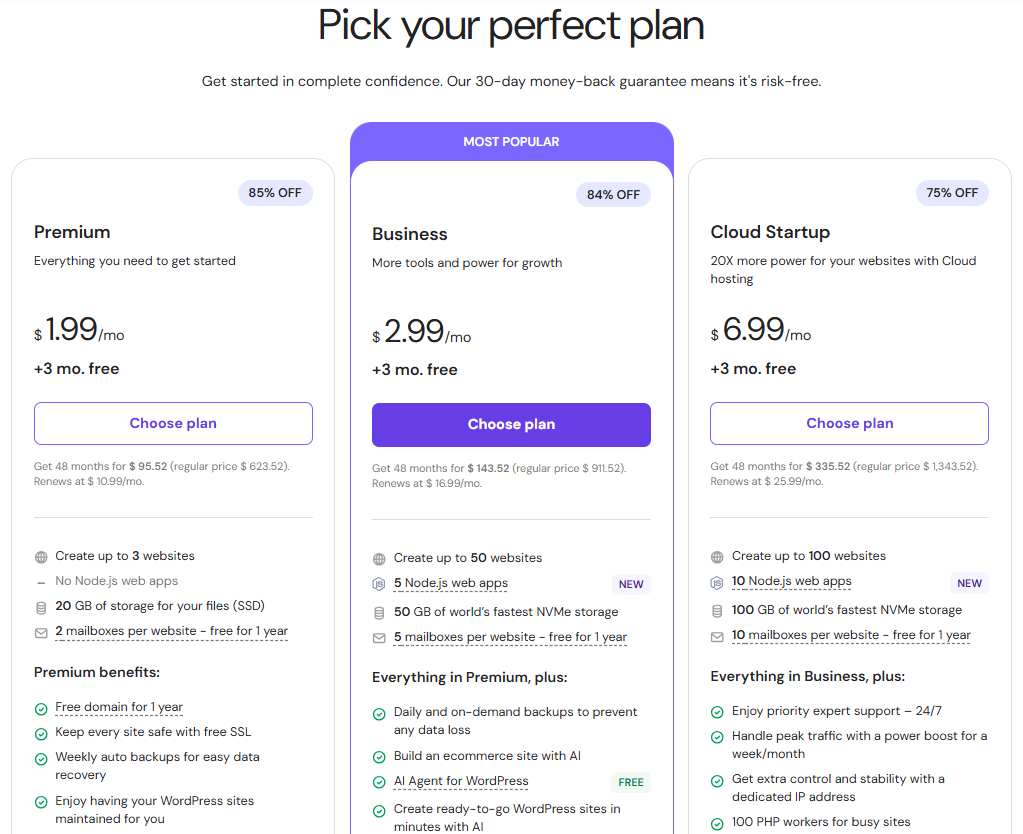
Choose a beginner hosting plan ( the basic plan is enough to start )
-
Follow the guided setup
Step 1B: Search for Your Domain Name
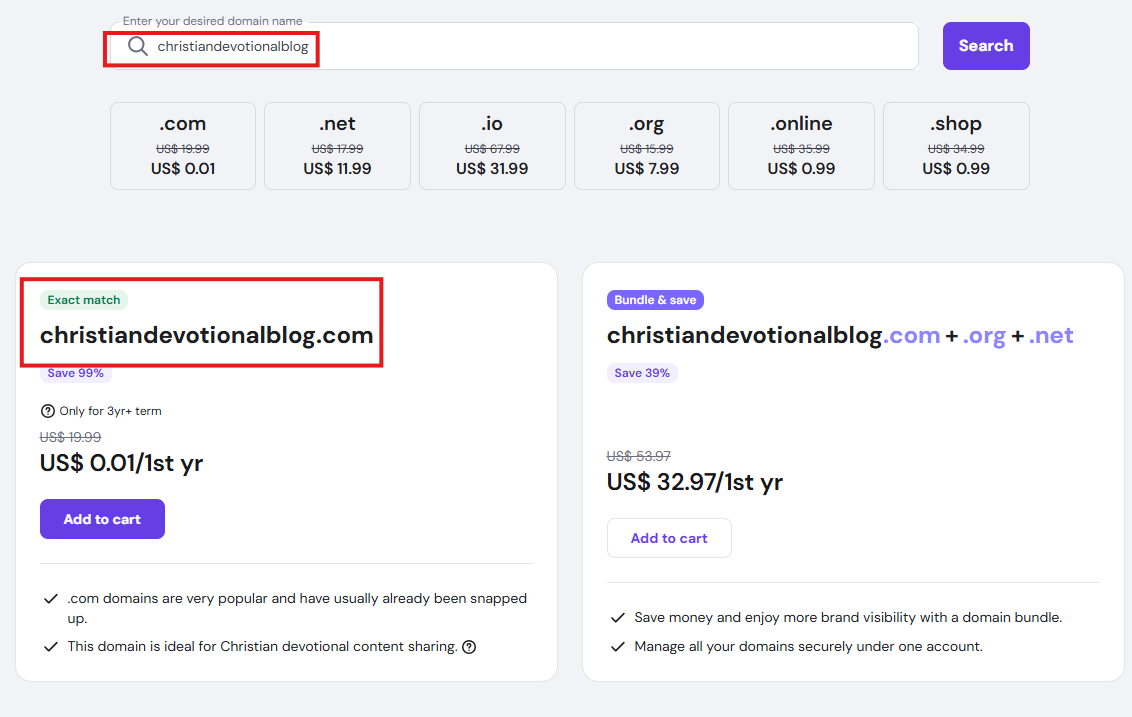
You’ll see a box where you can type a name like:
-
faithandhopeblog.com
-
dailychristianwalk.com
-
gracefilledlife.com
Tips for choosing a good domain name:
-
Keep it short and simple
-
Avoid numbers and dashes
-
Use words people can spell easily
-
Choose something meaningful to your faith
✝️ Gentle encouragement:
Your domain does not need to be perfect.
God uses faithfulness, not perfect names.
Step 1C: If Your Domain Is Available
If the name is available, you’ll see a confirmation message.
🎉 This is a good moment — take a breath.
What this means:
-
No one else is using that name
-
You can claim it
-
It becomes yours
Step 1D: If Your Domain Is NOT Available (Very Common)
This happens a lot. It’s okay.
Try:
-
Adding a word like blog, faith, or daily
-
Switching from
.comto.netor.org -
Shortening the name
Examples:
-
gracewalk.com → gracewalkblog.com
-
faithhope.com → faithandhope.org
⚠️ Mistake to avoid:
Don’t spend hours stuck here.
A simple name that works is better than a perfect name you never start with.
Step 1E: Choose a Hosting Plan (Beginner-Friendly)
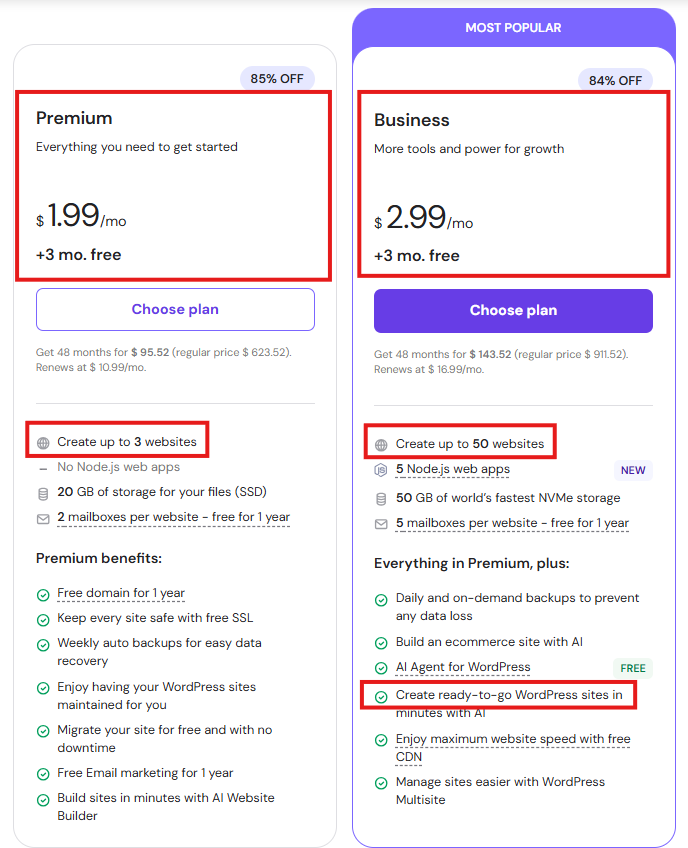
Hostinger will show you hosting plans.
For beginners:
-
Choose the basic or beginner plan
-
You can upgrade later if needed
-
No advanced features required
Step 1F: Create Your Account
Now you’ll:
-
Enter your email
-
Create a password
-
Complete checkout
📌 After payment, Hostinger will guide you automatically.
What Happens After This Step?
Once you finish:
-
Your domain is secured
-
Your hosting is active
-
You’re ready to install WordPress (next step)
You have officially taken your first real step into Christian blogging.
🙏 Gentle reassurance:
You don’t need to understand everything yet.
You just need to take the next step.
Step 1 Checklist (For Beginners)
Before moving on, make sure:
-
✅ You chose a domain name
-
✅ Hosting is active
-
✅ You can log into Hostinger
That’s it.
👉 Next Step: Installing WordPress (no coding, one click)
Step 2: Install WordPress (One Click, No Coding)
Good news: You will not install anything manually.
There is no coding, no files, and no technical setup.
WordPress is the tool you’ll use to:
-
Write blog posts
-
Create pages
-
Control your website
Hostinger installs WordPress for you automatically.
What Is WordPress? (Very Simple)
WordPress is where you write your blog.
Think of it like:
-
📝 Google Docs → but for your website
-
📖 A notebook → but online and public
WordPress is:
-
FREE
-
Beginner-friendly
-
Used by millions of blogs (including Christian blogs)
Hostinger installs it for you automatically.
Step 2A: Start WordPress Setup in Hostinger
After Step 1, Hostinger will ask:
“What kind of website do you want to create?”
Choose:
✅ Blog
✅ WordPress
👉 Hostinger will guide you step by step.
Step 2B: Create WordPress Login Details
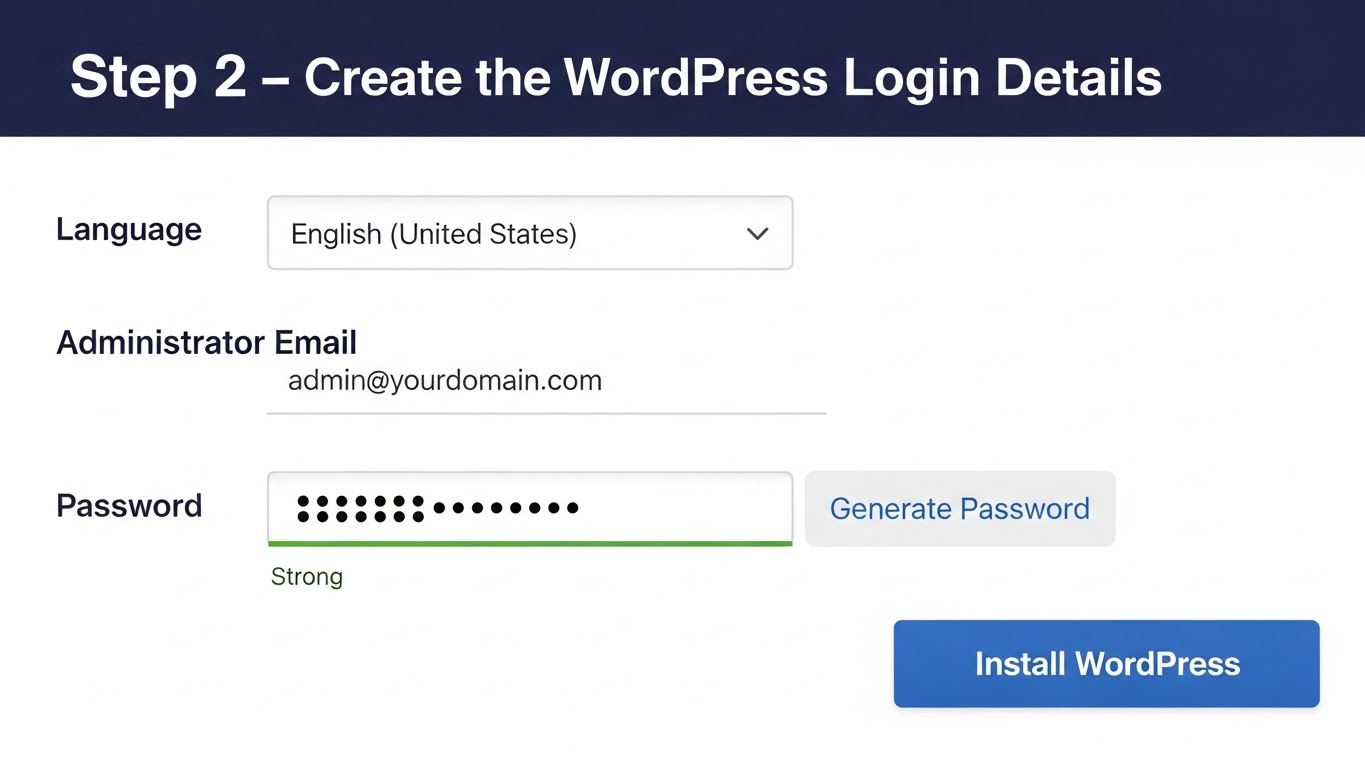
You’ll be asked to create:
-
A WordPress username
-
A WordPress password
📌 Write these down somewhere safe.
⚠️ Important:
This login is different from your Hostinger login.
Step 2C: Wait for Installation
Hostinger installs WordPress automatically.
⏳ This usually takes 1–2 minutes.
When it’s done, you’ll see a message like:
“Your website is ready.”
🎉 That means your blog now exists online.
Step 2 Checklist
Before moving on:
-
✅ WordPress is installed
-
✅ You created a username and password
-
✅ You see a “website ready” message
👉 Next: Logging into WordPress for the first time
Step 3: Log In to WordPress (Your Blog’s Control Center)
This is where many beginners feel nervous — but it’s simple.
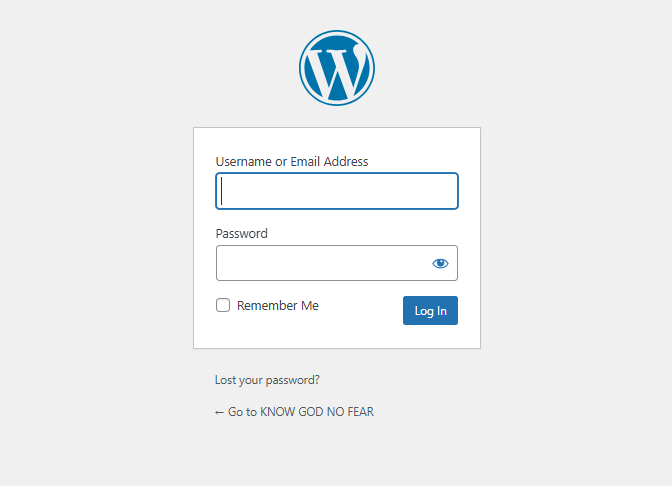
Step 3A: How to Log In
In your browser, type:
(Replace yourdomain.com with your real domain.)
Enter:
-
Your WordPress username
-
Your WordPress password
Step 3B: Welcome to the WordPress Dashboard
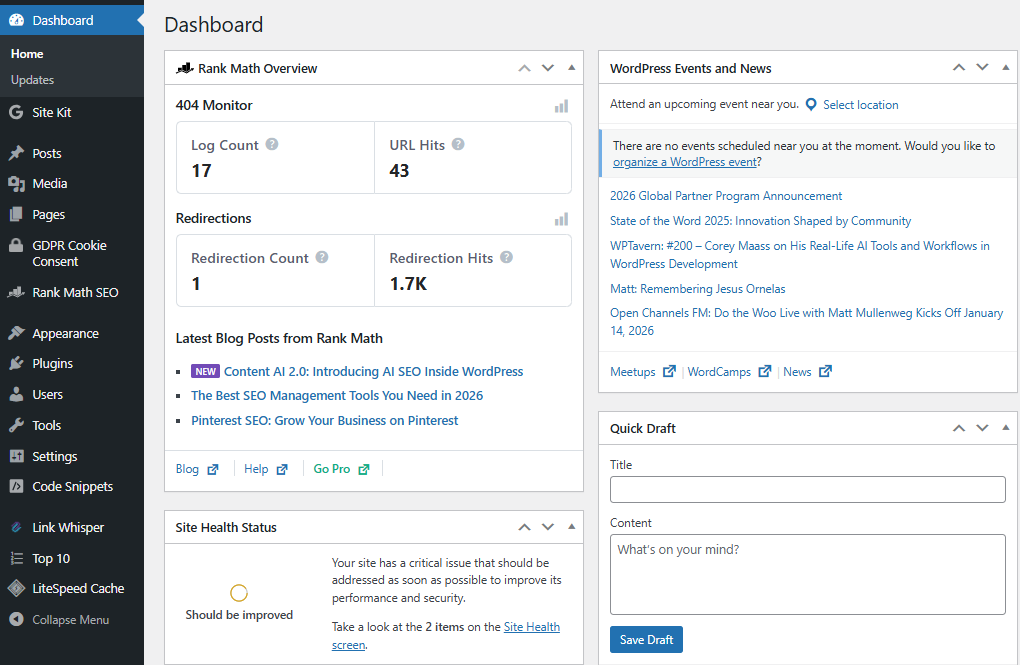
After logging in, you’ll see the Dashboard.
This is your control center.
You’ll notice a menu on the left with:
-
Posts
-
Pages
-
Appearance
-
Settings
🙏 Gentle reassurance:
You don’t need to understand everything here.
We’ll only use a few things.
Step 3 Checklist
-
✅ You logged into WordPress
-
✅ You see the dashboard
👉 Next: Choosing a simple design (theme)
Step 4: Choose a Simple Theme (Design)
A theme controls how your blog looks.
Colors, layout, and fonts come from the theme.
Important Beginner Truth
👉 Your theme does NOT need to be perfect.
👉 You can change it later with one click.
Focus on:
-
Clean
-
Simple
-
Easy to read
Step 4A: Go to Themes
In WordPress:
-
Click Appearance
-
Click Themes
-
Click Add New
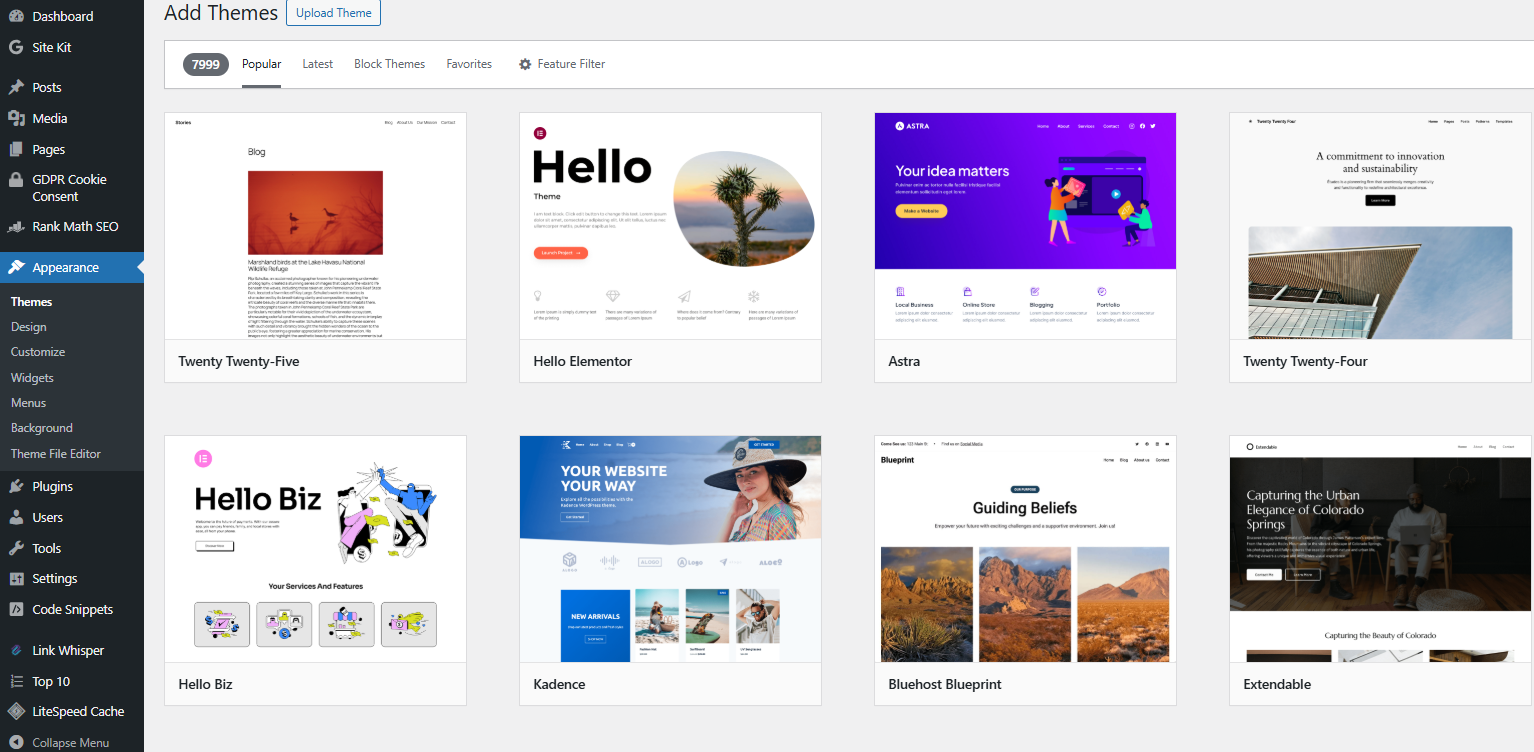
Theme selection screen.
Step 4B: Choose a Beginner Theme
Good beginner signs:
-
Simple layout
-
White background
-
Clear text
-
No flashy animations
Popular beginner themes:
-
Astra
-
Kadence
-
GeneratePress
Click Install, then Activate.
That’s it.
Step 4 Checklist
-
✅ Theme installed
-
✅ Theme activated
👉 Next: Basic settings (very quick)
— Advertisement —
(This section may include affiliate links to resources that help support this ministry.)

Step 5: Basic Settings (2 Minutes Only)
We’ll only adjust two things.
Step 5A: Site Title & Tagline
Go to:
-
Settings → General
Set:
-
Site Title: Your blog name
-
Tagline: A short sentence (example: “Simple Christian encouragement for everyday life”)
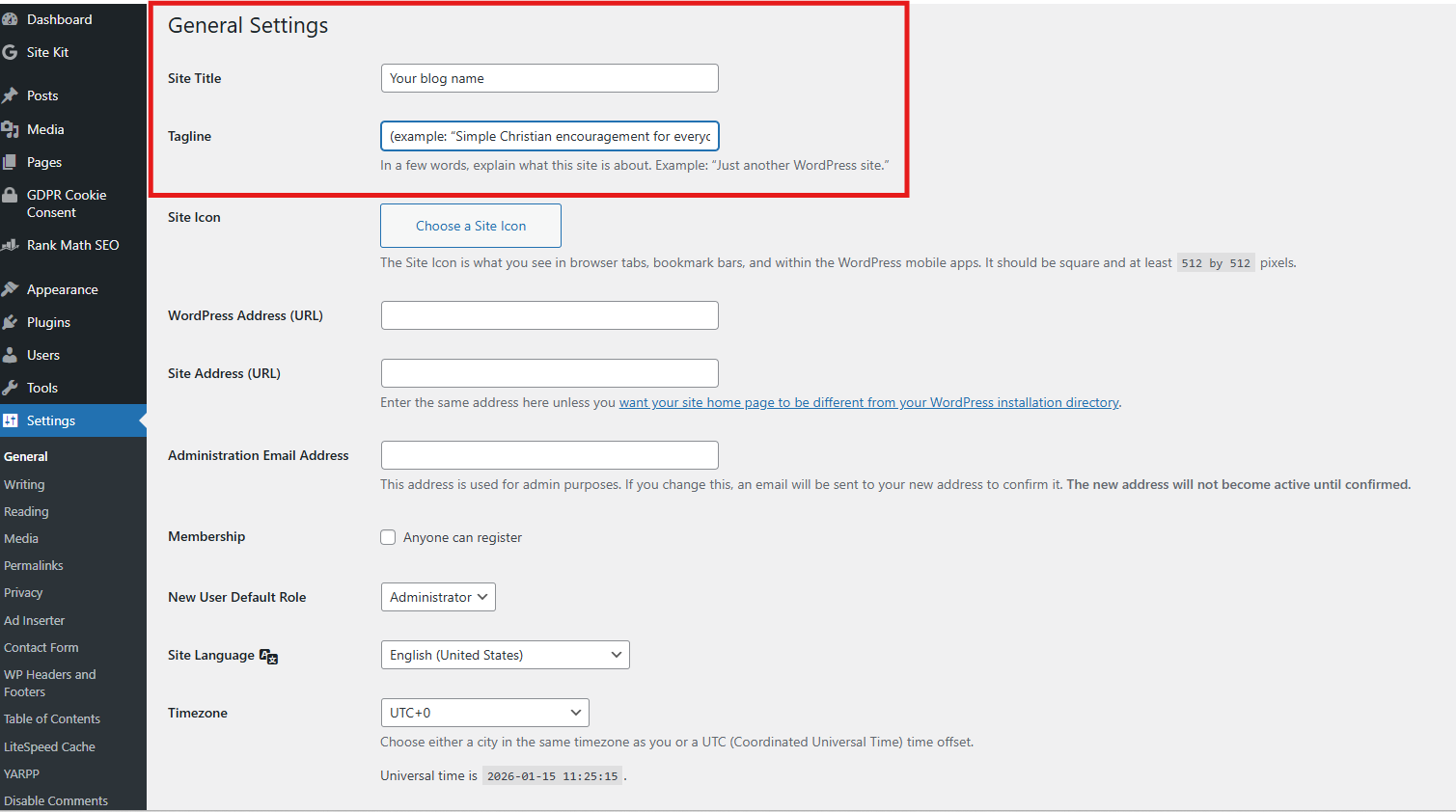
General settings screen.
Click Save Changes.
Step 5B: Check Your Timezone
Still in Settings → General:
-
Choose your correct timezone
-
Click Save
Done.
Step 5 Checklist
-
✅ Site title set
-
✅ Tagline added
-
✅ Settings saved
👉 Next: Writing your first Christian blog post
Step 6: Write Your First Christian Blog Post
This is the heart of your blog.
Step 6A: Add a New Post
In WordPress:
-
Click Posts
-
Click Add New or Add Post
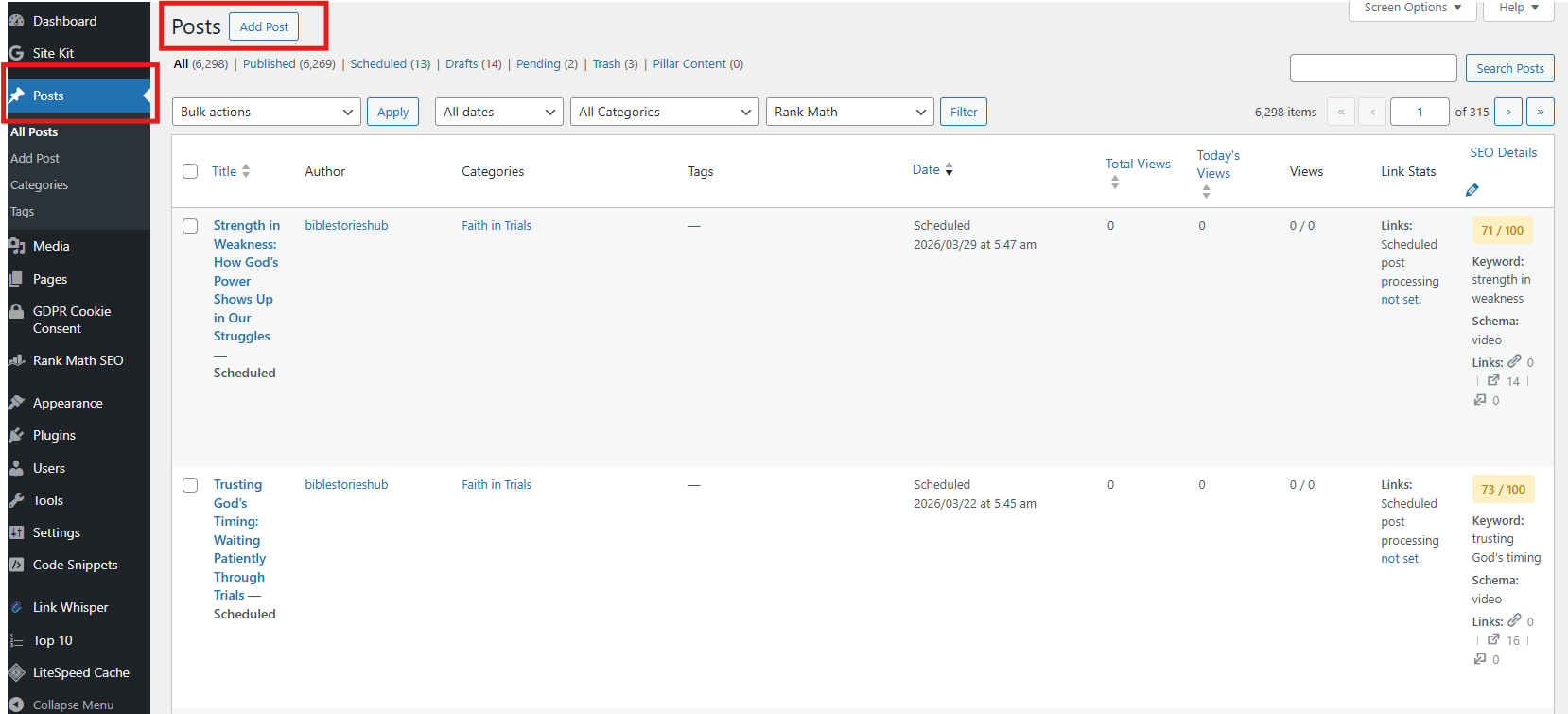
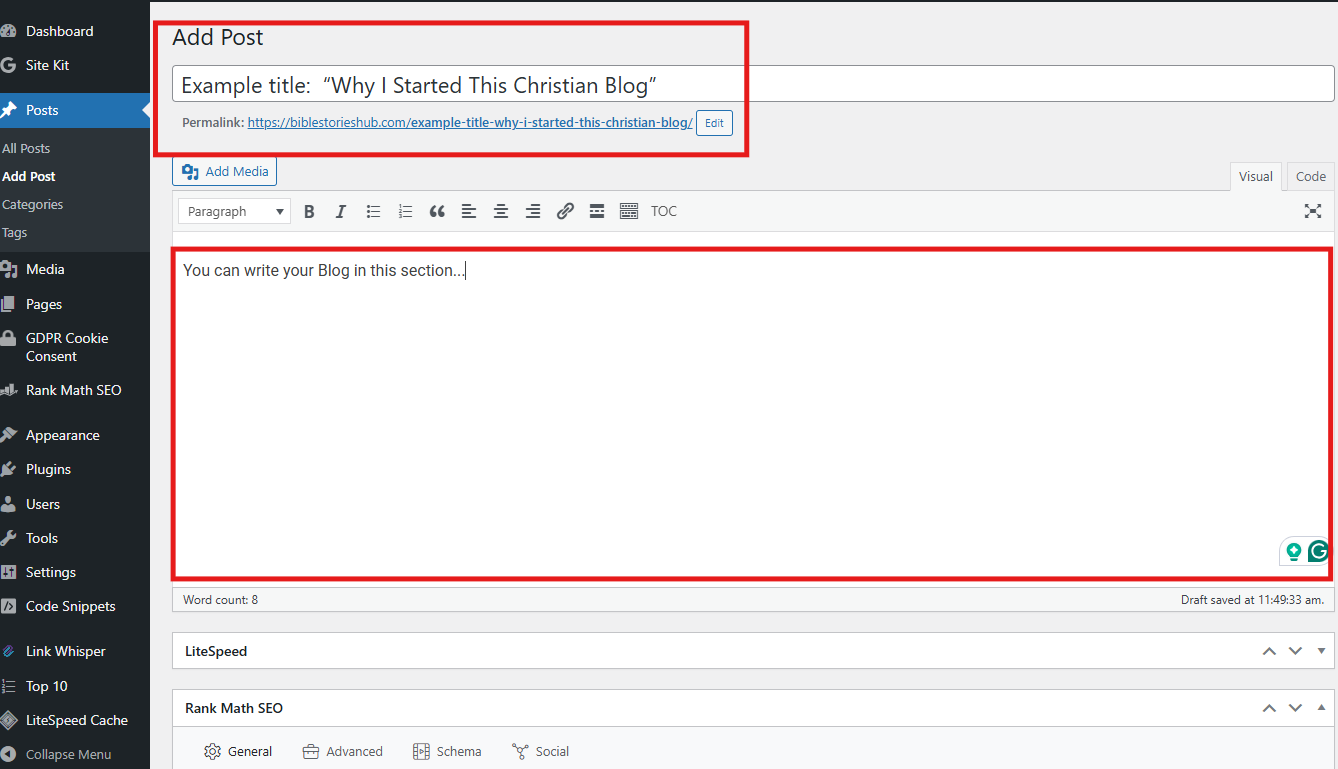
Add new post editor.
Step 6B: What to Write (Beginner-Friendly)
Keep it simple.
Your first post can include:
-
A short title
-
2–4 paragraphs
-
One Bible verse
-
A short prayer or reflection
Example title:
“Why I Started This Christian Blog”
This type of post is perfect for your first blog and builds trust with readers.
✝️ Gentle encouragement:
God doesn’t need polished words.
He honors obedience and sincerity.
Step 6C: Save a Draft or Publish
Buttons you’ll see:
-
Save Draft → finish later
-
Preview → see how it looks
-
Publish → make it live
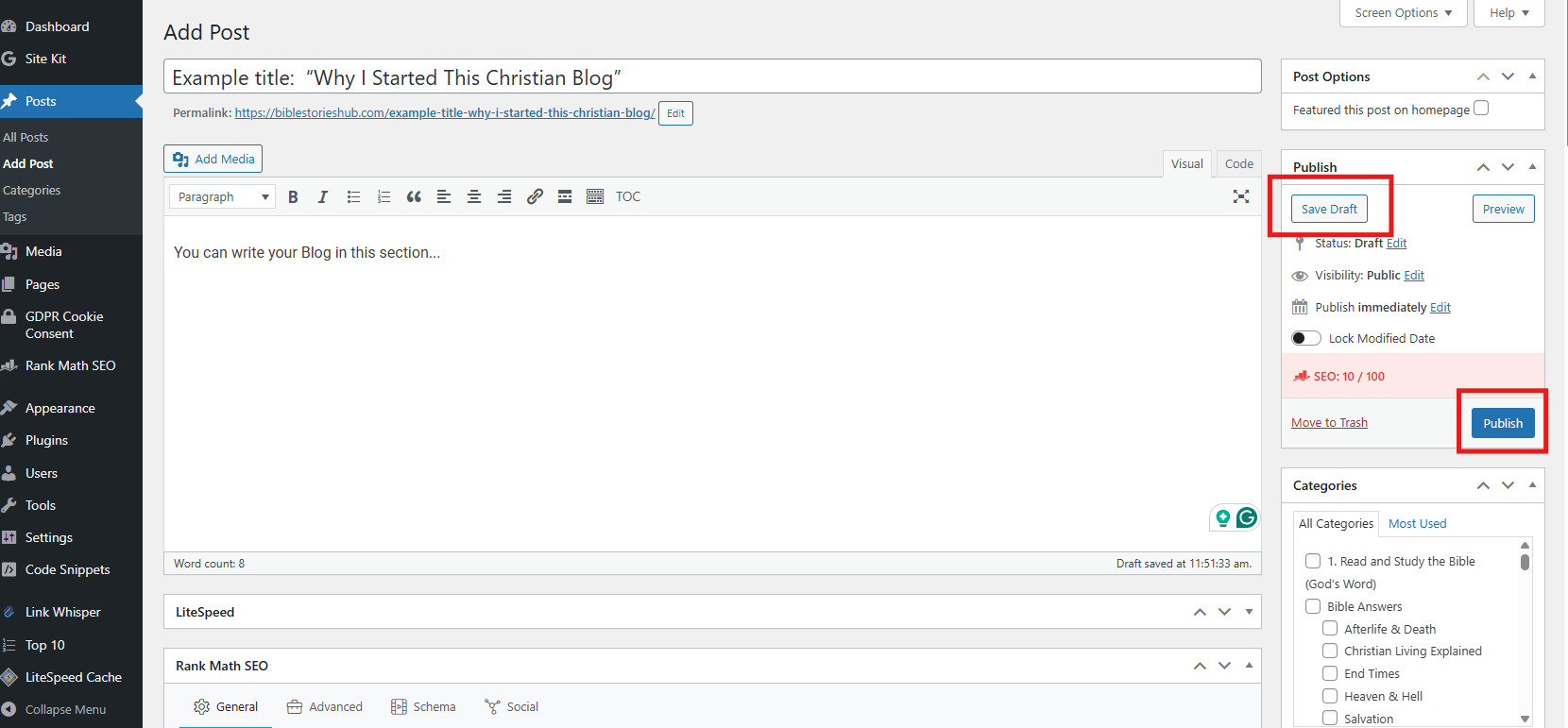
Publish button visible.
Step 6 Checklist
-
✅ First post written
-
✅ Previewed
-
✅ Published (or saved)
🎉 Your blog is now LIVE.
Step 7: Log Out Safely
When finished:
-
Click your profile (top right)
-
Click Log Out
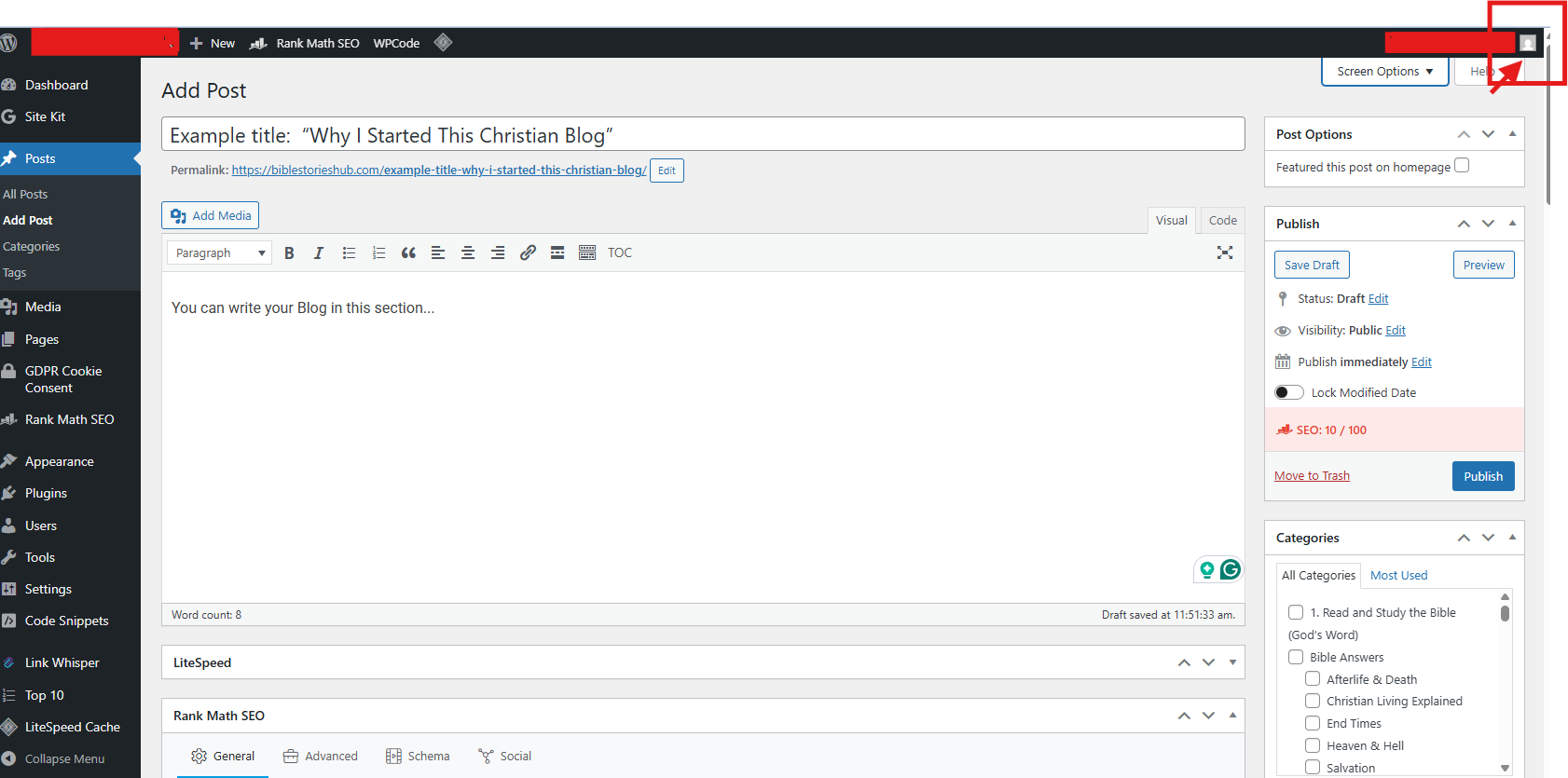
Logout menu.
Step 8: Simple Safety Tips (Beginner Level)
You don’t need advanced security.
Just remember:
-
Use a strong password
-
Don’t share your login
-
Always log out on shared computers
That’s enough for now.
Step 9: What to Do Next (Optional but Helpful)
Now that your blog is live, your next steps can be simple:
• Write one post per week
• Share it with friends or church groups
• Learn basic SEO slowly
• Add helpful tools when ready (hosting, writing tools, Bible study resources)
There is no rush.
Faithful consistency matters more than speed.
Final Encouragement
You didn’t need:
-
Coding skills
-
Design experience
-
Technical knowledge
You just needed:
-
Willingness
-
A small step forward
Your blog can grow slowly.
Your confidence will grow with it.